A Carrier Settings Update notification can appear on your iPhone even when no iOS update is available. The message offers little explanation of what is changing, leaving you unsure whether the update is necessary or what happens if you dismiss it.
The confusion also arises when no update notification appears after checking manually, or when the same prompt returns after installation.
What Do Carrier Settings Updates Change?
Carrier settings are network configurations that help your iPhone communicate with your mobile service provider. They support cellular services, including voice calls, mobile data, and network-specific features provided by carriers such as AT&T, Verizon, and T-Mobile, as well as prepaid providers such as TracFone Wireless.
A carrier settings update allows your provider to improve cellular connectivity and network performance. It can also introduce support for features such as 5G or Wi-Fi Calling, depending on your carrier, iPhone model, and cellular plan. These updates are separate from iOS software updates, which Apple distributes to update the operating system.
Switching providers or activating a new cellular line can also require updated carrier settings. According to Apple Support, setting up a new eSIM or inserting a different SIM card can require downloading the settings associated with that carrier.
Should You Install a Carrier Settings Update?
A Carrier Settings Update notification generated by iOS is a standard system prompt, and you can install it directly from the notification.
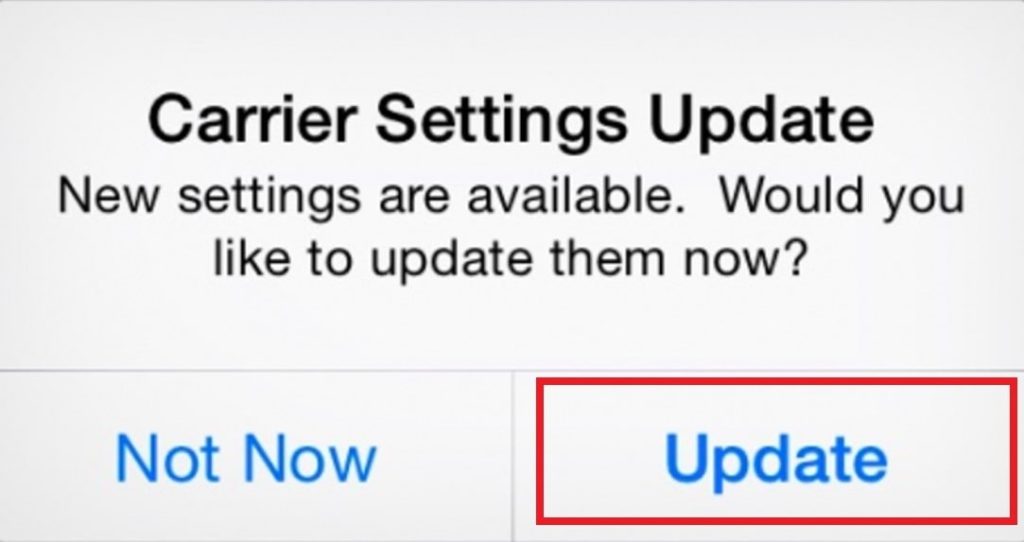
Apple distinguishes between updates that require your approval and mandatory updates that have already been installed. A standard notification presents an Update button, whereas a mandatory update presents OK to acknowledge that the system has downloaded and installed it.
Another notification, Cellular Settings Updated, has a different meaning. Apple explains that this message refers to an automatic cellular modem configuration update, which leaves your carrier settings and data plan unchanged and requires no action from you.
How to Check Your Carrier Settings Version
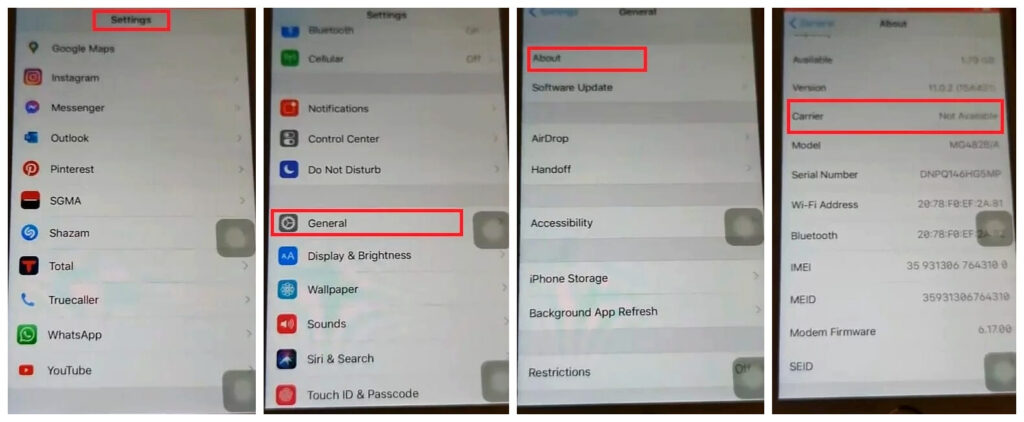
The installed carrier settings version is available under Settings > General > About, next to Carrier in the relevant SIM or eSIM information. Tapping the version number displays additional carrier information.
An iPhone configured with multiple cellular lines has carrier information associated with its SIM or eSIM configurations. When checking a particular provider, identify the corresponding cellular line to find the appropriate version number.
The version number is specific to the carrier’s configuration. Different providers distribute their own settings, so comparing your number with another person’s iPhone on a different network is not a reliable way to determine whether an update is available.
How to Update Carrier Settings Manually on iPhone
If you dismissed the notification, you can check again through your iPhone’s About screen. There is no separate button to search for carrier settings updates.
- Connect to a network. Make sure your iPhone has an active Wi-Fi or cellular network connection so it can check for available settings.
- Open Settings. Select General, then tap About to access your iPhone’s device and carrier information.
- Check for an update. If new carrier settings are available, an installation prompt will appear. Tap Update and follow the onscreen instructions.
- Complete the installation. Apple states that installing an available carrier settings update takes less than one minute and that you can continue using your iPhone during the process.
What If the Carrier Settings Update Is Missing or Keeps Reappearing?
If no update prompt appears when you open About, iOS is not offering a carrier settings update. The absence of a prompt does not mean the manual check failed.
The situation is different when a carrier update notification repeatedly returns after you select Update. If the prompt persists, contact your carrier for assistance.
A recurring update prompt alone is insufficient reason to reset network settings or delete an eSIM. Those actions address different aspects of cellular configuration and are unnecessary for a routine carrier settings check.
If your iPhone displays No Service, SOS, or Searching, checking for a carrier settings update is one of Apple’s recommended troubleshooting steps. Apple’s cellular connectivity instructions also cover network coverage, carrier outages, and cellular plan issues that can affect your connection.
Conclusion
Unlike an iOS update, there is no single carrier settings release schedule that applies to every iPhone. Update availability depends on the cellular provider and configuration, making a check after changing carriers or SIMs more useful than repeatedly searching for updates without a specific reason.