com.android.settings is the package name of the built-in Settings application on Google, Samsung, Xiaomi, OnePlus, and other Android devices. It provides access to device configuration, including wireless connections, display preferences, application permissions, security, and account management.
You can encounter it in system-app listings, Google My Activity, or error messages when the Settings application crashes. On our Xiaomi phone, screenshots taken inside Settings also include the package name in their filenames.
What Does com.android.settings Do?
The Settings app connects the controls you interact with to the Android services responsible for managing those functions. Enabling a Wi-Fi hotspot, for example, sends a request to Android’s tethering service, which manages internet sharing with connected devices.
We examined Xiaomi’s Android 15 Settings APK using our APK Analyzer. Its manifest identifies it as a core system application operating under the Android system shared user ID and contains dedicated activities for managing network connections, accessibility, notifications, and other device preferences.
Android provides standard Settings intents that allow other applications to open specific configuration screens, such as Bluetooth or app information, without navigating through the main Settings menu.
Several related packages perform separate functions. com.android.providers.settings manages stored system preferences, com.android.settings.intelligence supports Settings search, and com.android.systemui handles elements such as the status bar and notification shade.
Why Does com.android.settings Appear in Google My Activity?
The entry “Used com.android.settings” in Google My Activity identifies recorded activity associated with the Settings application. Google’s activity documentation does not specify what triggers this particular entry.
Selecting Details beneath the entry reveals its timestamp and why the activity was saved, along with device information when available. The record alone does not establish which setting was accessed, whether a preference was changed, or who physically interacted with the phone.
Is com.android.settings Safe?
Yes. The Settings application is a legitimate Android system component, documented in the Android Open Source Project.
Its extensive permissions reflect its responsibilities. The Xiaomi APK we inspected declares WRITE_SECURE_SETTINGS, a restricted permission for reading and modifying secure system settings that is not intended for ordinary third-party applications.
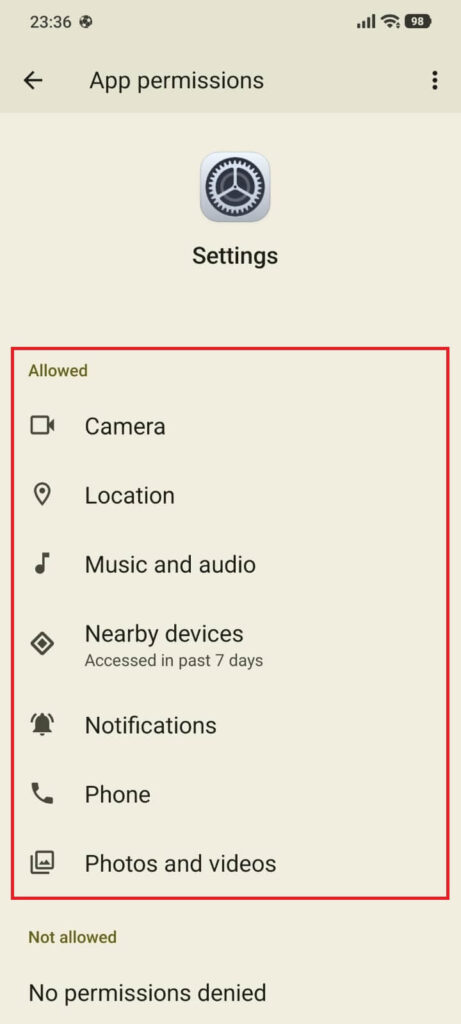
We also checked the permissions granted to Settings on our Xiaomi Redmi Note 13 Pro. Seven categories are allowed: camera, location, music and audio, nearby devices, notifications, phone, and photos and videos. Only Nearby devices carries the label “Accessed in past 7 days.”
Why Does com.android.settings Keep Stopping?
The messages “Unfortunately, Settings has stopped” and “Settings keeps stopping” indicate that the application has crashed unexpectedly. The error identifies the affected application, not the underlying cause.
Possible causes include corrupted cached files, software defects, and conflicts involving installed applications or manufacturer-specific features. For example, Settings crashing exclusively when opening an application’s notification preferences points toward a problem loading that particular configuration screen. Crashes that begin after a firmware update raise the possibility of a compatibility issue introduced by the update.
How to Fix the “Settings Keeps Stopping” Error on Android
Start with a restart and Safe Mode when Settings crashes on launch. Clearing its cache and installing firmware updates require access to the relevant configuration screens, but you can update a suspected application directly from its app store.
1. Restart Your Phone
Restarting can resolve temporary failures by terminating the existing Settings process and reloading the system services it depends on.
- Open your phone’s power menu.
- Select Restart.
- Wait for Android to finish starting.
- Open Settings and navigate to the screen that previously triggered the error.
On recent Samsung Galaxy devices, hold the side button and volume down button simultaneously to access the power menu. On Pixel 6 and later models, hold the power button and volume up button instead.
2. Check Whether Settings Works in Safe Mode
Safe Mode temporarily prevents downloaded applications from running, allowing you to determine whether third-party software contributes to the crash. Entering this mode does not uninstall your applications.
- Turn off your phone.
- Turn it back on.
- On Samsung Galaxy and Google Pixel devices, hold the volume down button when the startup logo or animation appears.
- On Xiaomi devices, release the power button when the phone vibrates and the startup logo appears, then hold the volume down button.
- Keep holding the button until the phone starts in Safe mode.
- On Pixel devices, turn off Airplane mode in Quick Settings, since Safe Mode enables it automatically.
- Open Settings and test the affected configuration screen.
Restart your phone normally to exit Safe Mode. If the crash also occurred in Safe Mode, proceed to step 3. Otherwise, investigate applications installed or updated shortly before the crashes began and update the suspected application using the procedure in step 4.
If no update is available or the crash persists after updating, back up the application’s important data before uninstalling it:
- Open the Google Play Store.
- Tap your profile picture.
- Select Manage apps & device > Manage.
- Select the suspected downloaded application.
- Tap Uninstall.
Restart your phone and test the affected Settings screen before removing another application.
3. Clear the Settings App Cache
Clearing the application’s cache removes temporary files without resetting your device preferences. The App info shortcut bypasses the main Settings menu but still depends on the Settings application.
Access the storage controls through one of these routes:
- Crash dialog: Select App info > Storage or Storage & cache.
- App icon: Press and hold the Settings icon, then select App info > Storage or Storage & cache, when available.
- Samsung: Settings > Apps > Filter and sort > Show system apps > Settings > Storage.
- Google Pixel: Settings > Apps > See all apps > Settings > Storage & cache.
- Xiaomi HyperOS: Settings > Apps > Manage apps (on some models, Apps > three-dot menu > Show all apps), select Settings (
com.android.settings), then tap Clear data.
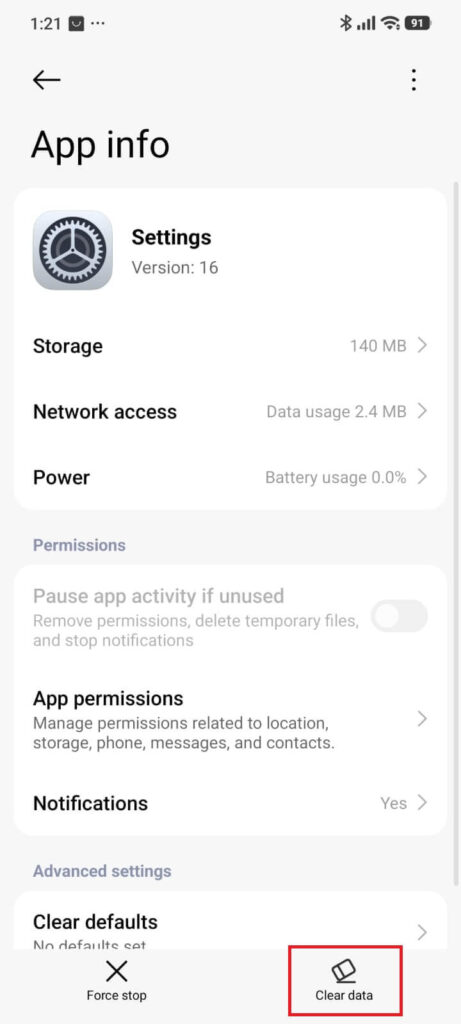
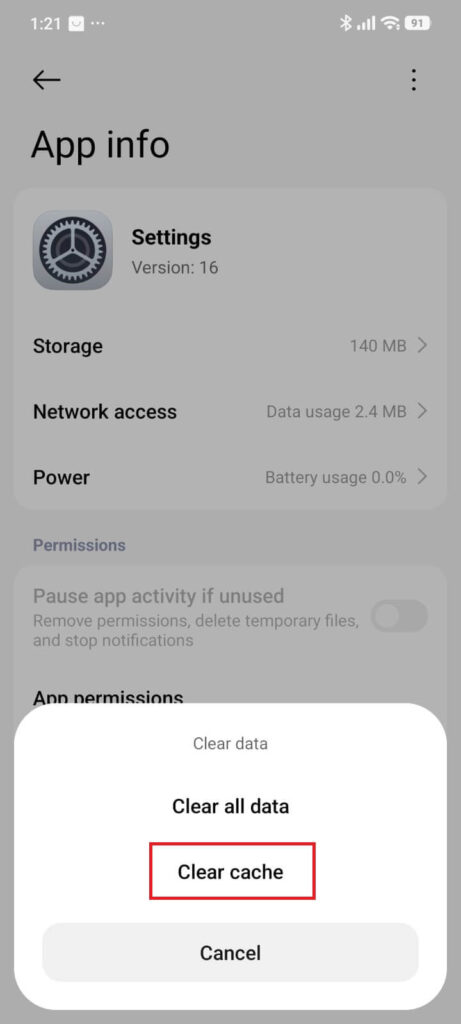
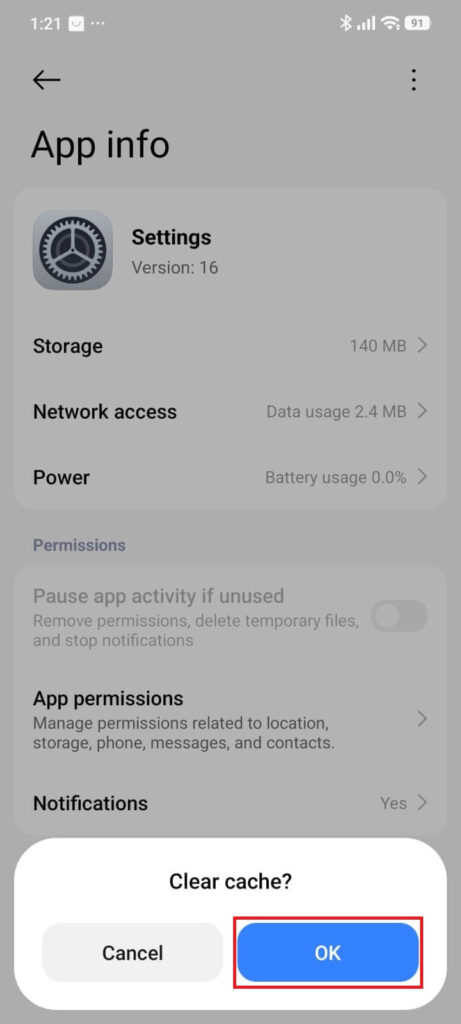
Select Clear cache, not Clear storage or Clear all data. Reopen the configuration screen that previously crashed.
Skip this procedure if none of these routes opens the storage controls.
4. Update the Application Associated With the Crash
Application updates can resolve compatibility problems that contribute to Settings crashes. Update the suspected downloaded app or the application associated with the affected feature, such as Samsung’s Modes and Routines.
- Open the Google Play Store.
- Tap your profile picture.
- Select Manage apps & device.
- Open the available updates.
- Locate and update the affected application.
For Samsung-specific applications, check Galaxy Store > Menu > Updates. Return to the affected Settings screen after installation to determine whether the update resolved the failure.
5. Install Available Android Software Updates
The Settings application is part of the manufacturer’s firmware, so fixes for the application are distributed through system updates rather than the Google Play Store.
The update location depends on your device:
- Samsung: Settings > Software update > Download and install or Check for updates.
- Xiaomi HyperOS: Settings > About phone > tap Xiaomi HyperOS > Check for updates.
- Google Pixel: Settings > System > Software updates > System update.
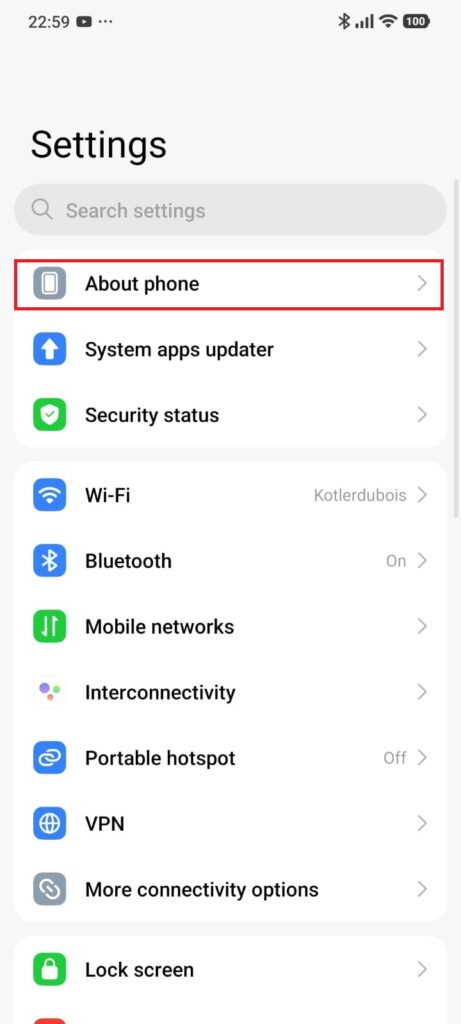
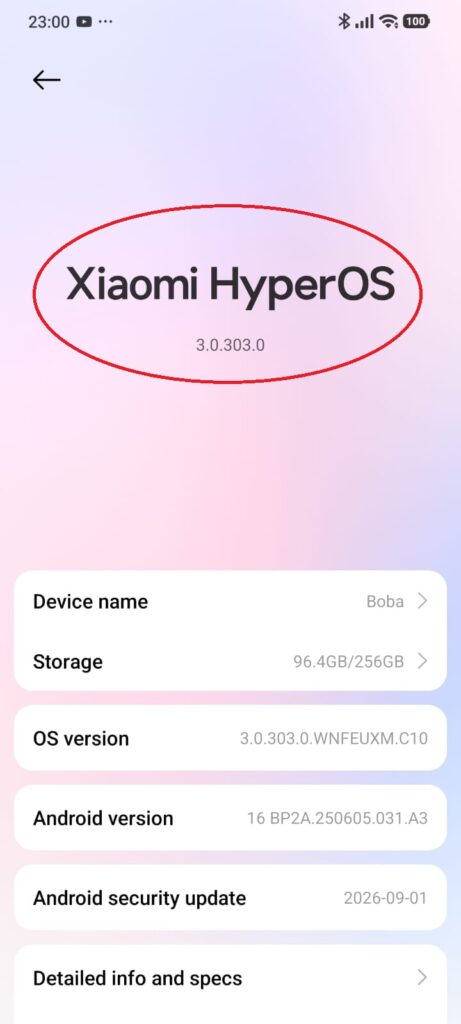
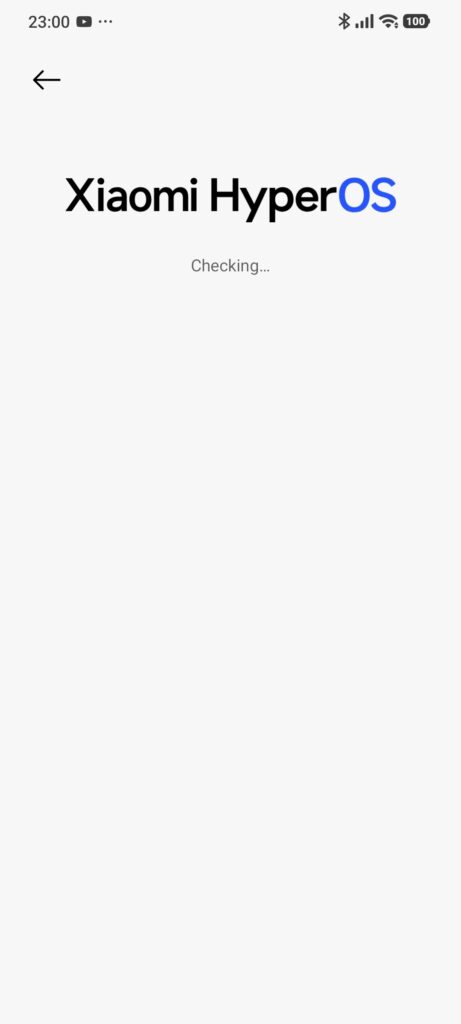
Install any available update and reopen the affected screen once the installation finishes.
If Settings continues to crash after these procedures or prevents access to software updates, contact the device manufacturer’s support service. On Samsung, you can submit an error report through Samsung Members without opening the Settings application itself.
Can You Disable or Uninstall com.android.settings?
Android does not provide a standard uninstall option for the built-in Settings application. Removing or disabling it prevents access to essential configuration screens, including the controls needed to manage applications, modify permissions, and restore disabled components.
System preferences are stored separately from the Settings application, so removing it does not restore your phone’s default configuration.