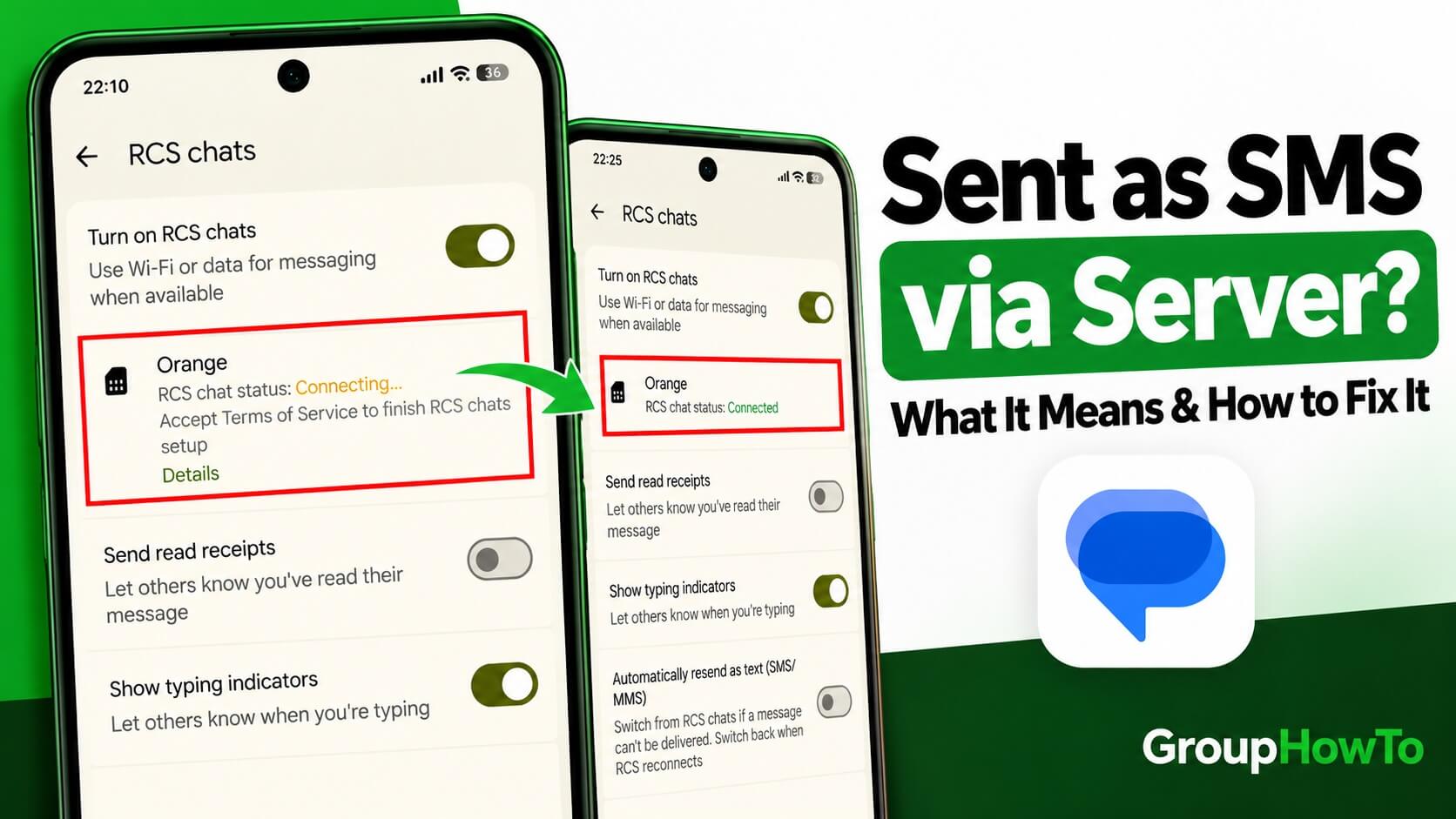
“Sent as SMS via server” can appear in Google Messages where you would normally expect an RCS status such as Sent, Delivered, or Read. The wording sounds more technical than a normal text-message receipt, which makes it unclear whether the message went through or whether something changed with RCS.
What Does Sent as SMS via Server Mean?
“Sent as SMS via server” means the message was sent as SMS after the conversation could not continue through RCS. The wording itself is not fully documented by Google, so “via server” should not be treated as the name of a separate messaging service.
Why Does Sent as SMS via Server Appear?
RCS uses Wi-Fi or mobile data, while standard SMS goes through your mobile carrier. If RCS is unavailable when Google Messages tries to send, the message can fall back to SMS or MMS instead.
This can happen when the recipient temporarily loses RCS access, does not have RCS enabled or available, or your own phone loses its RCS connection. An occasional fallback is normal.
Did the Message Send?
Yes, your phone sent it, but Sent does not mean the same thing as Delivered or Read. The status alone does not confirm that the recipient received or opened the message.
RCS supports typing indicators and read receipts when both participants have RCS enabled. Those RCS indicators are not available in the same way once the individual message falls back to standard SMS/MMS.
The status does not indicate that the recipient has blocked your number. Troubleshooting becomes useful when messages repeatedly fall back to SMS in conversations that normally use RCS, RCS shows a connection problem, or messages stop sending altogether.
How to Stop Sent as SMS via Server on Android
Repeated SMS fallback can point to an RCS connection or configuration problem on your phone.
After each step, open Google Messages > Messages settings > RCS chats and test a conversation that normally uses RCS.
1. Check the RCS Status
The RCS status shows whether Google Messages can currently use RCS and can reveal a registration or carrier problem.
- Open Google Messages.
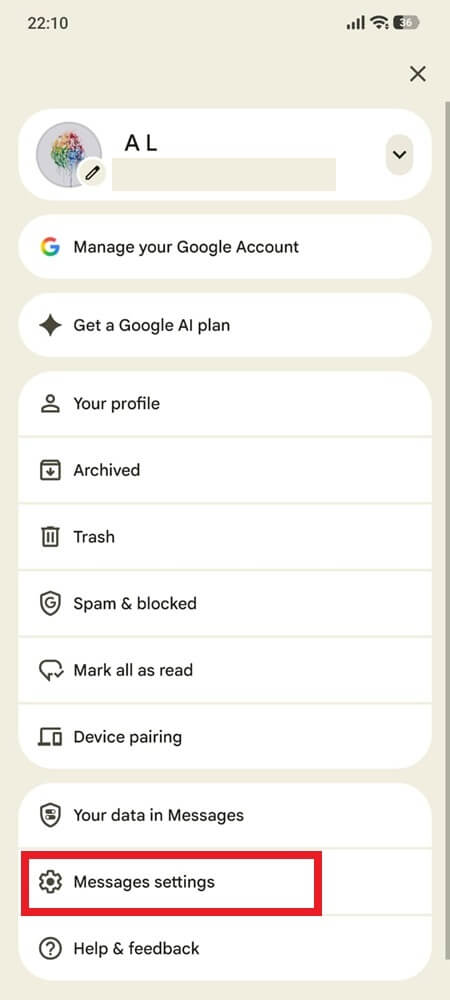
- Tap your profile picture or initial.
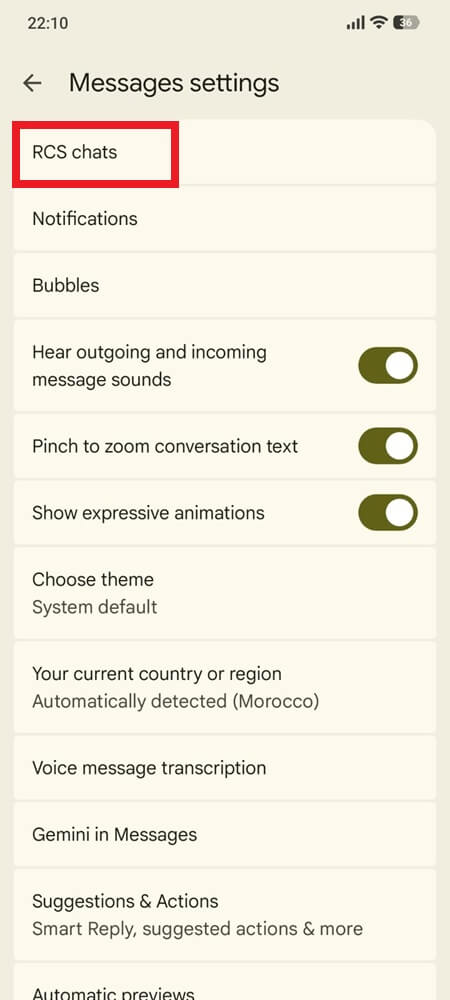
- Go to Messages settings > RCS chats.
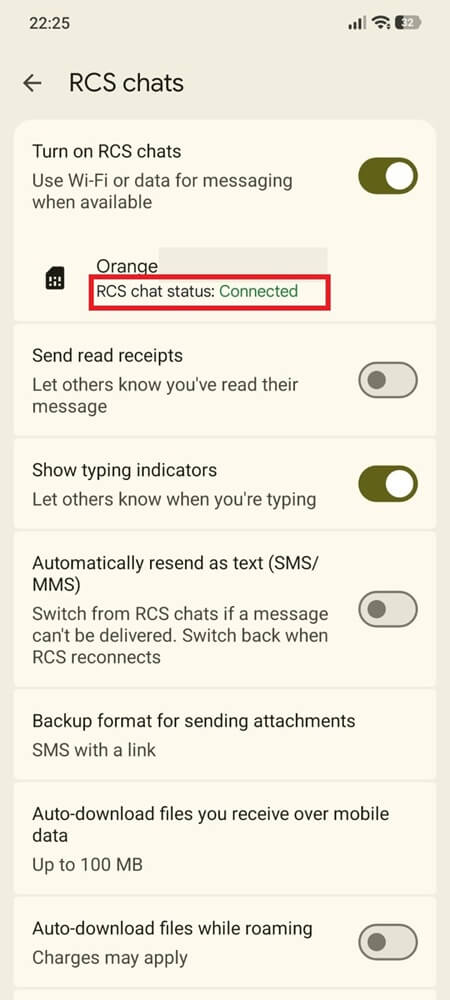
- If the status is Connected, RCS is working on your phone. When fallback happens only with one contact, the cause is more likely on that contact’s side.
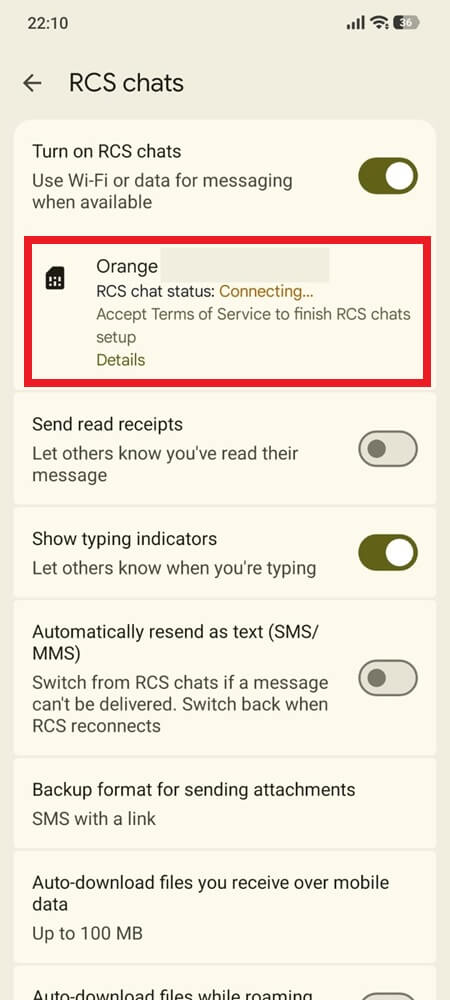
- If it shows Connecting, your phone number is being verified, so allow the verification to finish.
- If RCS says it has been disabled by your carrier, contact the carrier. After the carrier resolves the problem, return to RCS chats and tap Retry.
- If the status is Not supported, check your internet connection. If Google Messages specifically says RCS chats are not supported by your carrier, RCS is not currently available through that carrier.
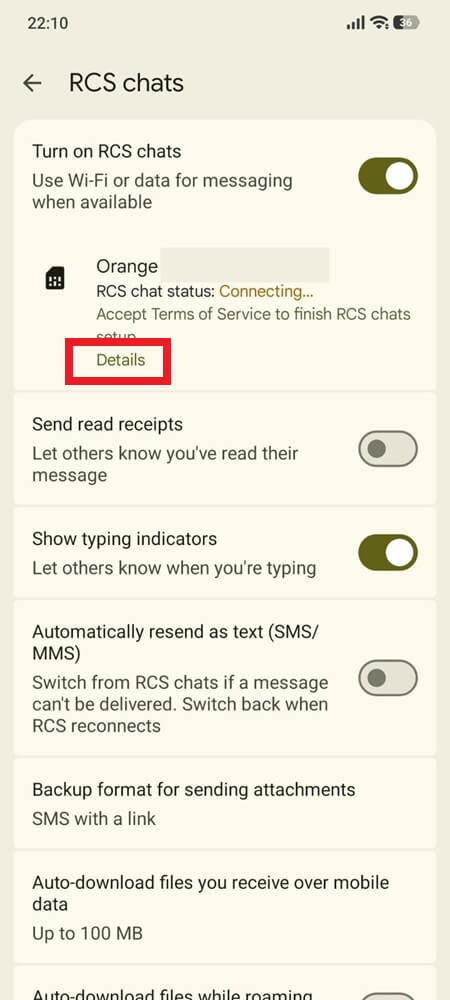
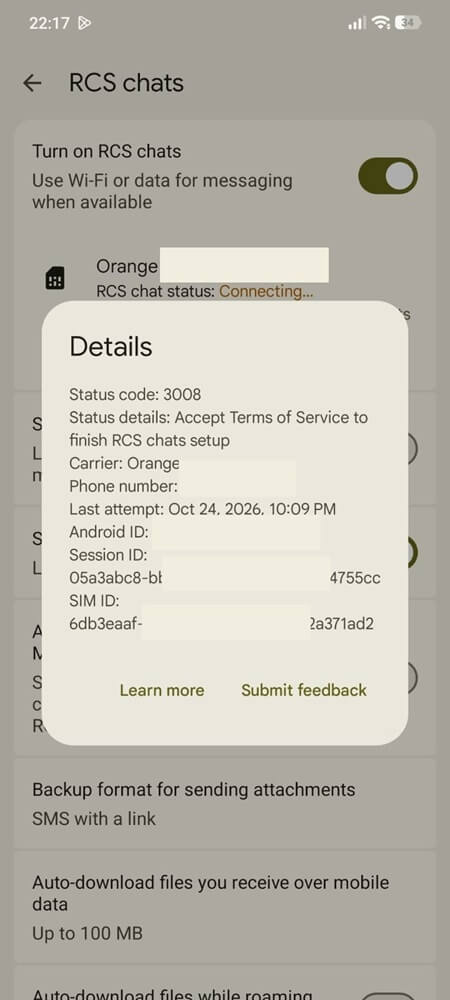
- If it shows Trouble connecting. Awaiting retry for more than 30 minutes, use Verify your number if that option appears. Then tap Details to see the reason. If it says to accept the Terms of Service, go to Step 7. If RCS still does not connect, tap Submit feedback.
2. Check the SMS Fallback Setting
Automatic fallback is the setting most directly connected to “Sent as SMS via server.” It determines what Google Messages does when a message cannot be delivered through RCS.
- Open Google Messages.
- Tap your profile picture or initial.
- Open Messages settings > RCS chats.
- Find Automatically resend as text (SMS/MMS) or Resend messages.
- Change the resend option if you do not want unsuccessful RCS messages automatically sent as SMS.
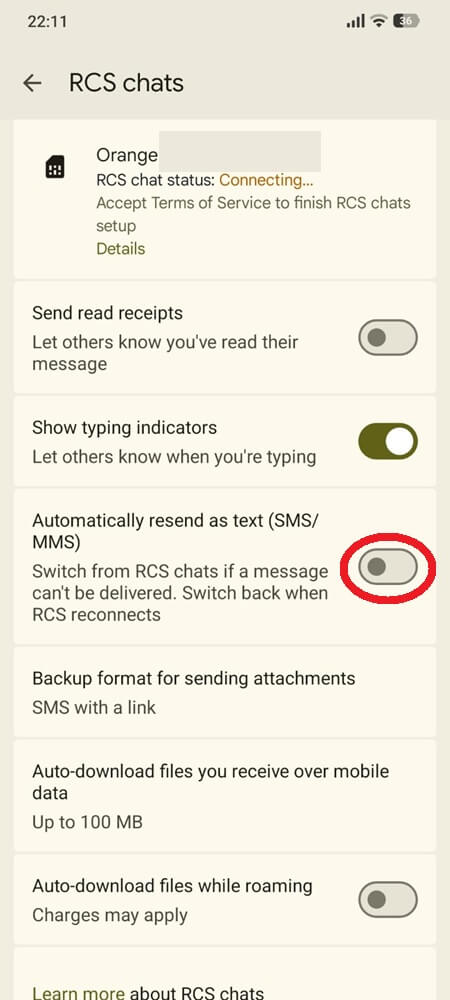
Turning fallback off does not repair RCS or hide the status. It only stops Google Messages from automatically switching to SMS, so an unsuccessful message can remain unsent until RCS becomes available again.
3. Check Wi-Fi or Mobile Data
The phone needs a working internet connection for RCS. Check that Wi-Fi or mobile data is actually online before moving to other RCS settings.
- Confirm that Wi-Fi or mobile data is connected.
- Load a webpage or another online service to verify that the connection works.
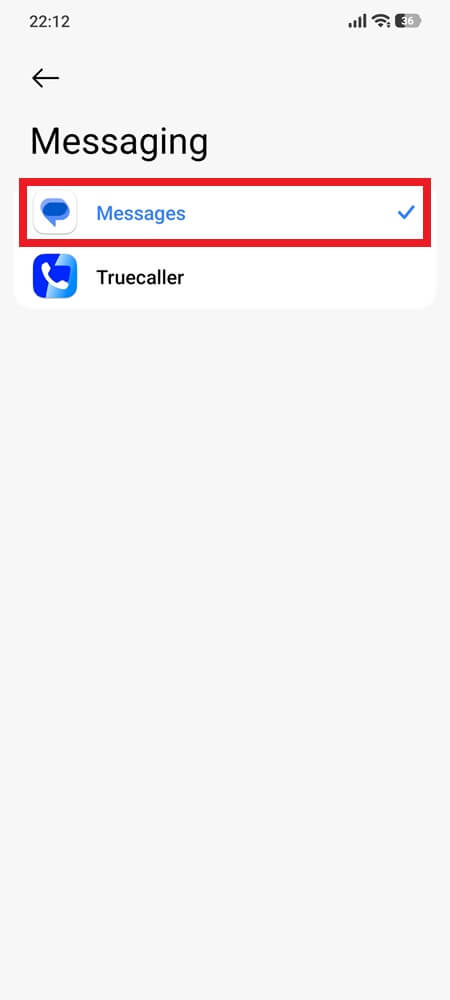
4. Make Google Messages the Default SMS App
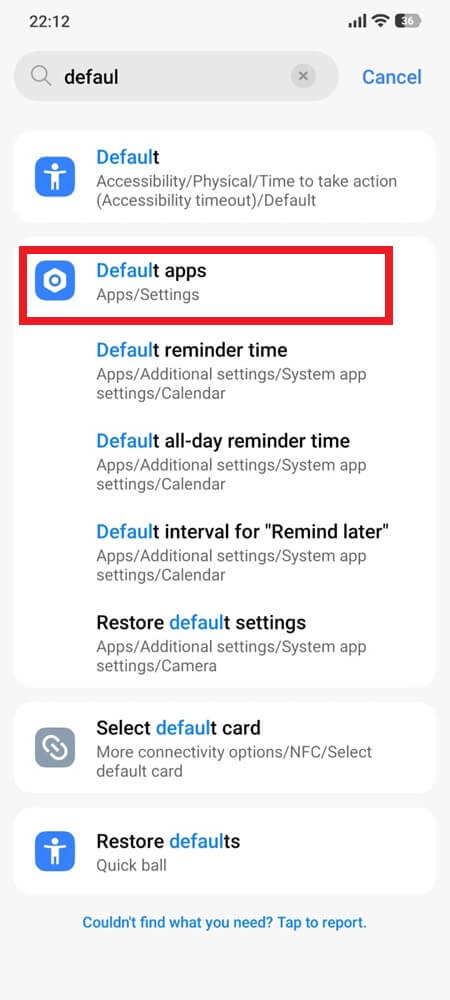
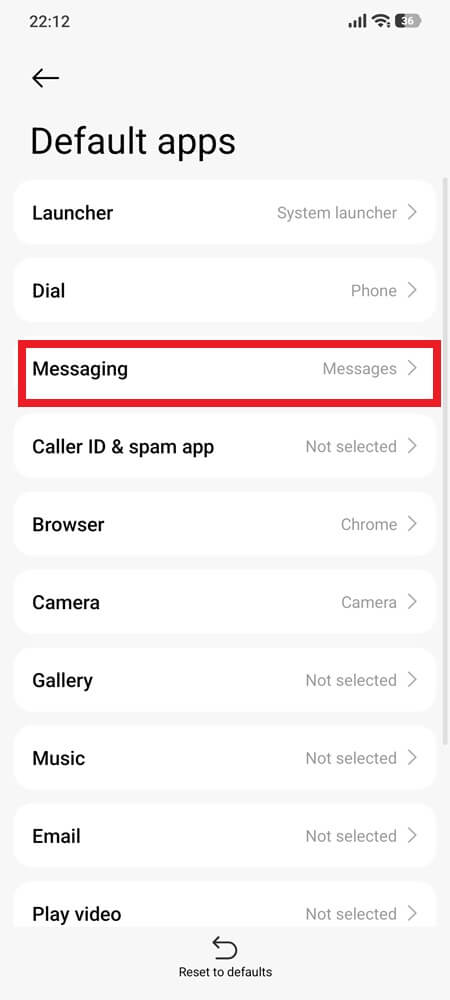
Google lists the default messaging app as one of the checks for an RCS connection that is not working. The exact Settings path differs between Android manufacturers, so use the phone’s default-app settings rather than relying on one universal menu path.
- Open your phone’s Settings.
- Search Settings for Default apps, or find the setting used to choose the default SMS app.
- Select Google Messages.
5. Check Dual-SIM Settings
Dual-SIM configuration can interfere with RCS when the SIM used for calls and the SIM used for mobile data do not match. Google specifically recommends checking this when both SIM slots are in use.
- Open your phone’s Settings.
- Go to Network & Internet or the equivalent SIM settings on your phone.
- Check which SIM is selected for Calls.
- Make sure the same SIM is configured for Mobile data.
6. Update Google Messages and Google Play Services
Google also recommends checking both Google Messages and Google Play Services when RCS cannot connect properly.
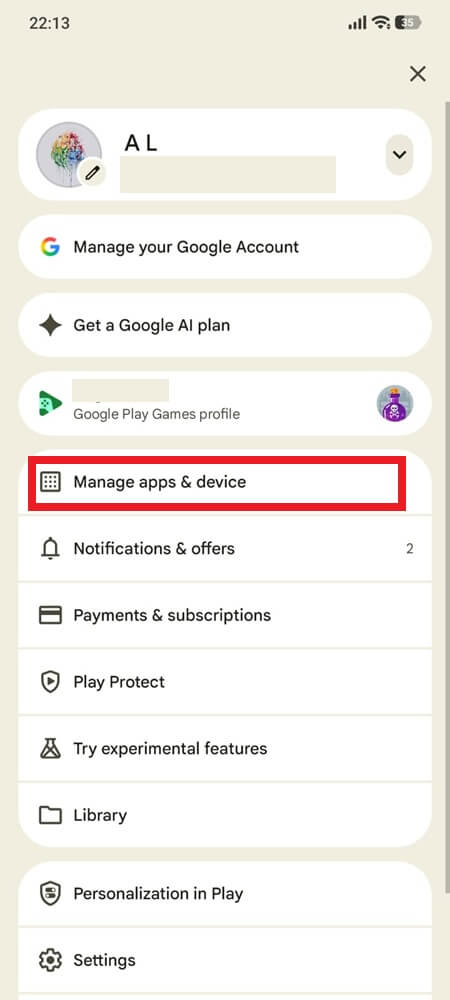
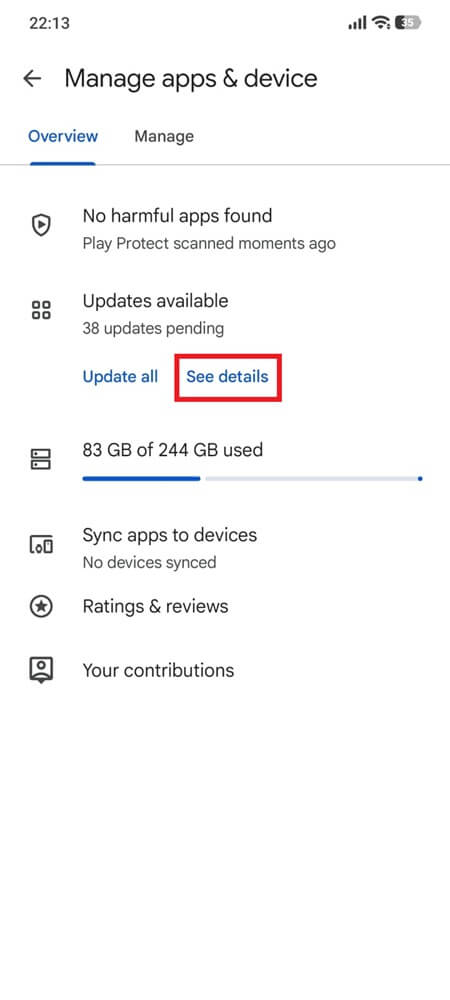
- Open the Google Play Store and check Google Messages for an update.
- Install any available update.
- Make sure Google Play Services is also updated to the latest available version.
- Restart your phone after installing the updates.
7. Accept the RCS Terms of Service
Follow this step only if the RCS status shows Accept Terms of Service to finish RCS chats setup. On an Orange SIM, Details showed status code 3008 but had no option to accept the terms.
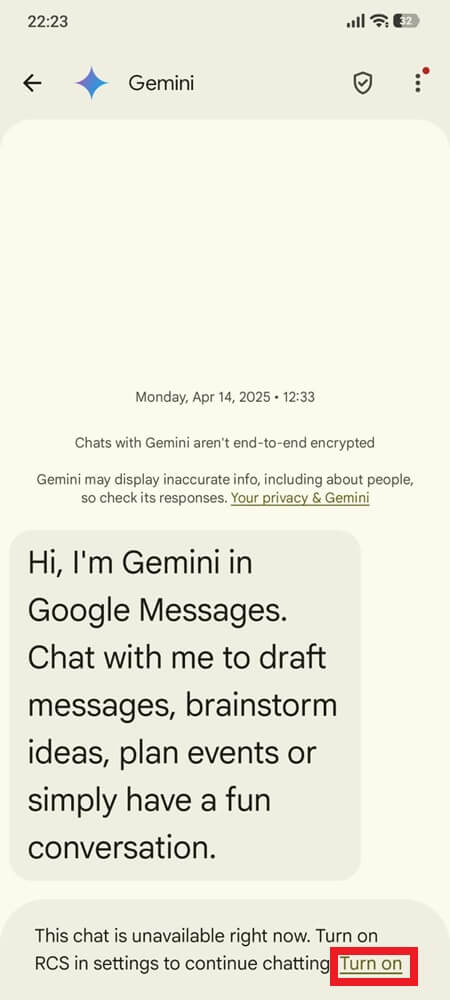
- Open a conversation that asks you to turn on RCS, such as the Gemini conversation, and tap Turn on.
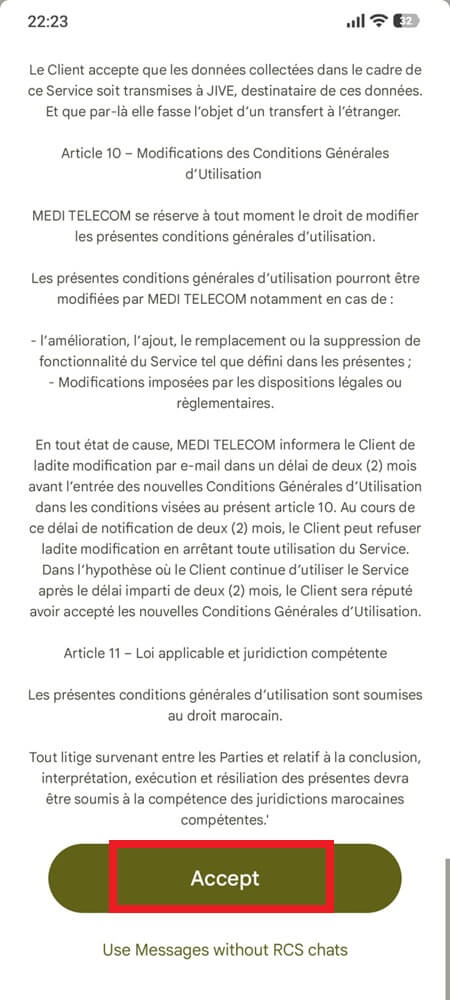
- Review your carrier’s Terms of Service and tap Accept.
- Return to Messages settings > RCS chats and check the status. In our test, it changed from Connecting to Connected.
Final Word
Google Messages shows the delivery method before a message is sent. The send icon can indicate whether the message will use Wi-Fi or mobile data as RCS or be sent as SMS or MMS, giving you a quick way to check whether a conversation has returned to RCS.