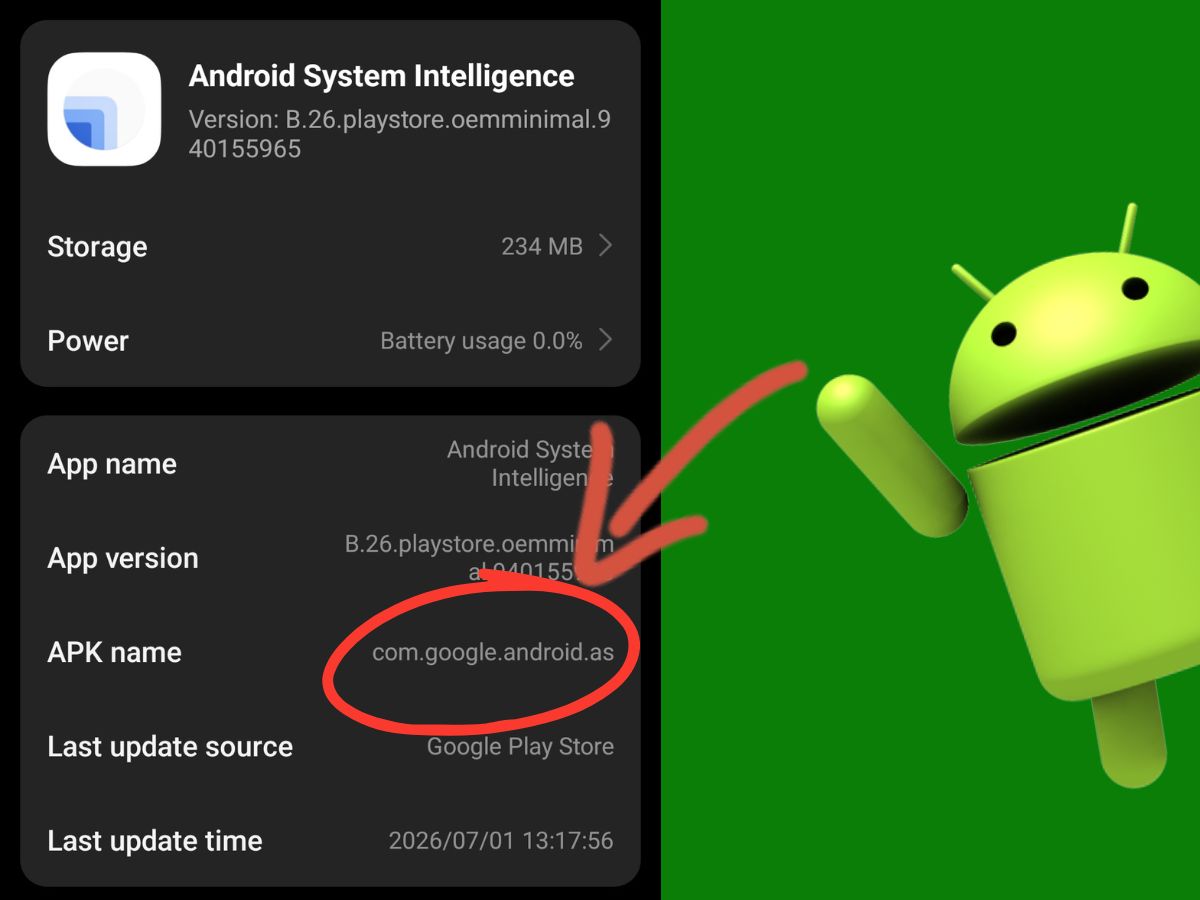
The package name com.google.android.as can appear in battery reports, system-app lists, privacy settings, crash messages, or technical diagnostic tools. Because Android sometimes shows the package identifier instead of the readable component name, it can look like an unknown app installed without permission.
com.google.android.as is the package identifier for Android System Intelligence. It appears on supported Android devices, including some Redmi and Google Pixel phones. The component was previously known as Device Personalization Services before Google renamed it Android System Intelligence in 2021.
Table of contents
- What Is com.google.android.as?
- What Is Android System Intelligence?
- Is com.google.android.as Safe?
- Common Android System Intelligence Problems
- How to Fix Android System Intelligence Problems
- Can You Disable or Remove com.google.android.as?
What Is com.google.android.as?
Every Android application and system component has a unique package name that the operating system uses to identify it. The package name remains consistent even when the visible app name changes, allowing Android to store settings, assign permissions, and distinguish one component from another.
In this identifier, com.google marks Google’s package namespace, while android identifies the Android product family. The readable name shown on current devices is Android System Intelligence, but diagnostic screens and package tools can still display com.google.android.as. It is separate from com.android.settings.intelligence, which supports search and suggestions inside Android Settings.
com.google.android.as normally arrives as part of the phone’s system software rather than through a manual installation. Google also distributes updates for it through Google Play, which allows supported features to receive fixes and improvements without waiting for a complete Android operating system update.
What Is Android System Intelligence?
Android System Intelligence provides on-device processing for features that respond to what is happening on the phone. Rather than being an app that the user opens, it works behind Android features that recognize speech, interpret selected content, predict useful actions, or adjust device behavior according to context.
Google lists these functions among those powered by the component:
- Live Caption
- Screen Attention
- Improved copy and paste
- App predictions
- Smart actions in notifications
- Smart text selection
- Linkifying text in apps
- Now Playing
Live Caption processes speech from supported media and displays generated captions. Screen Attention checks whether the user is looking at the display so the screen does not turn off while it is being viewed, while improved copy and paste helps Android recognize and transfer useful content between applications.
App predictions use recent device activity to suggest applications that the user is likely to open next. Android System Intelligence also supports or interacts with other contextual functions on eligible devices, but the precise feature set is determined by the device manufacturer, Android version, region, and installed language resources.
Android System Intelligence operates as an application inside Android’s Private Compute Core architecture. Google describes Private Compute Services, package name com.google.android.as.oss, as the controlled network gateway used when these applications need approved network resources.
The two packages are therefore related but not interchangeable. com.google.android.as performs the intelligent on-device work, and com.google.android.as.oss provides the separate network bridge used by supported Private Compute Core functions.
Is com.google.android.as Safe?
com.google.android.as is a legitimate package, not malware or an application secretly installed by an unknown developer. Its official Google Play listing names Google LLC as the publisher. Google Play Protect separately scans installed apps for potentially harmful behavior.
An APK downloaded from an unfamiliar source requires separate scrutiny. Before installing it, use an APK analyzer to inspect its permissions, certificate, components, and code for warning signs.
By contrast, Android System Intelligence can display broad permissions because its contextual features need access to the information they process. Live Caption requires audio-related processing, Screen Attention uses the front-facing camera while the feature is active, and intelligent text actions need access to selected or copied content. That access does not mean every piece of screen, audio, or usage data is routinely uploaded to Google.
Pixel owners can also inspect the Android System Intelligence Network Usage Log through the phone’s privacy settings after enabling developer options. Google provides this log so users can see network requests associated with the component rather than treating all background communication as invisible activity.
Common Android System Intelligence Problems
The most visible failure is an “Android System Intelligence keeps stopping” message. This normally means the component cannot load correctly, its stored data no longer matches the installed version, or an update has introduced a conflict with another connected system component.
A failure can also appear through one of its dependent features. Live Caption can stop generating captions, Now Playing settings can close unexpectedly, app predictions can disappear, or contextual actions can stop appearing even though no Android System Intelligence error is shown.
Now Playing problems are not always isolated to com.google.android.as. One Pixel support report traced a Now Playing failure to Pixel Launcher data rather than Android System Intelligence itself, showing why the affected feature should be identified before storage is cleared indiscriminately.
Abnormal battery use is another reported problem. Google’s public issue tracker contains reports attributing heavy battery consumption to Android System Intelligence, but the package should only be treated as the cause when the phone’s battery-usage screen shows sustained activity that matches the period of drain.
A small amount of background use is expected because the component supports ongoing system features. A sudden increase after an update, repeated crashes, heat while the phone is idle, or usage that remains high after dependent features have stopped running points to a fault rather than ordinary operation.
How to Fix Android System Intelligence Problems
The correct repair depends on what is actually failing. Start with the least disruptive method, test the affected function after each one, and move to data resets or update rollback only when the earlier step does not restore normal behavior.
Menu names and locations differ between Pixel, Redmi, and other Android devices. Follow the path shown for your phone, and use Settings search for Android System Intelligence when the same option appears under a different menu.
Confirm Android System Intelligence Is Causing the Problem
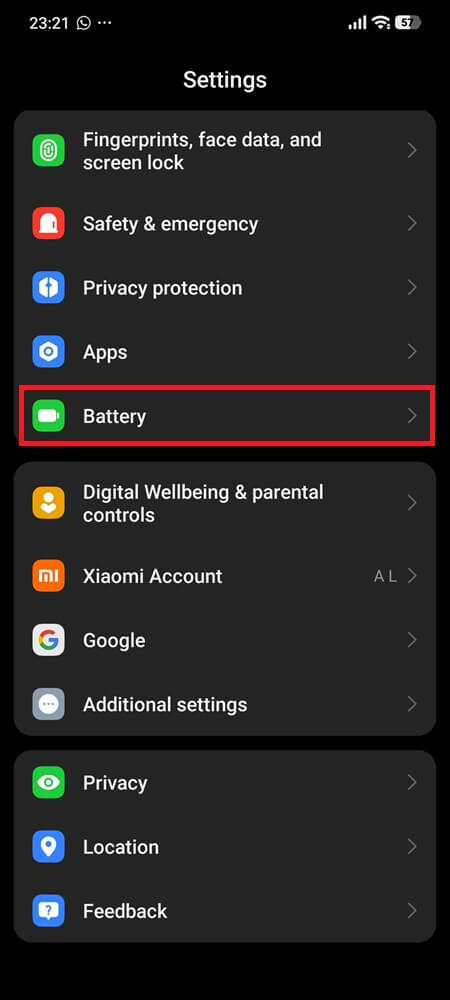
- Open Settings.
- Tap Battery.
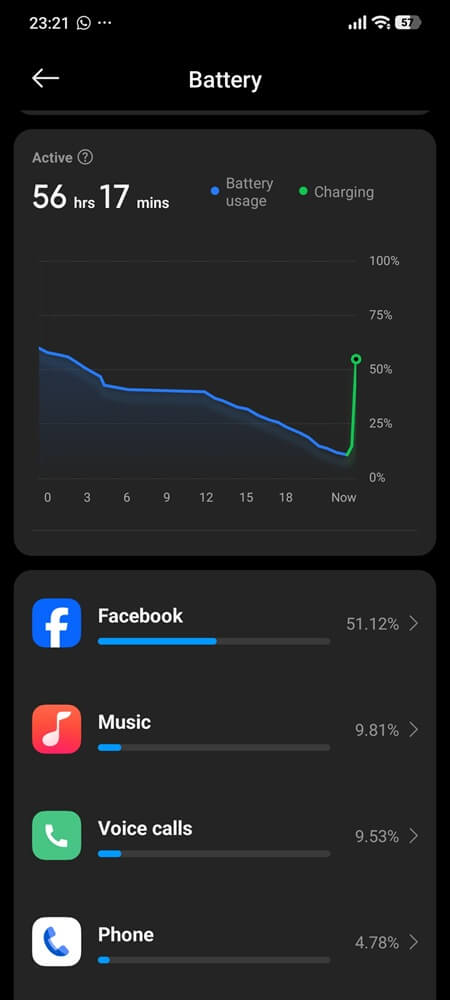
- Open Battery usage.
- Check whether Android System Intelligence shows sustained activity during the period of battery drain.
- For a feature failure, test the affected function, such as playing spoken media with Live Caption enabled or opening the Now Playing settings page.
Update Android System Intelligence
- Open the Google Play Store.
- Search for Android System Intelligence.
- Open its app page.
- Tap Update if the option appears.
- Restart the phone and test the affected function again.
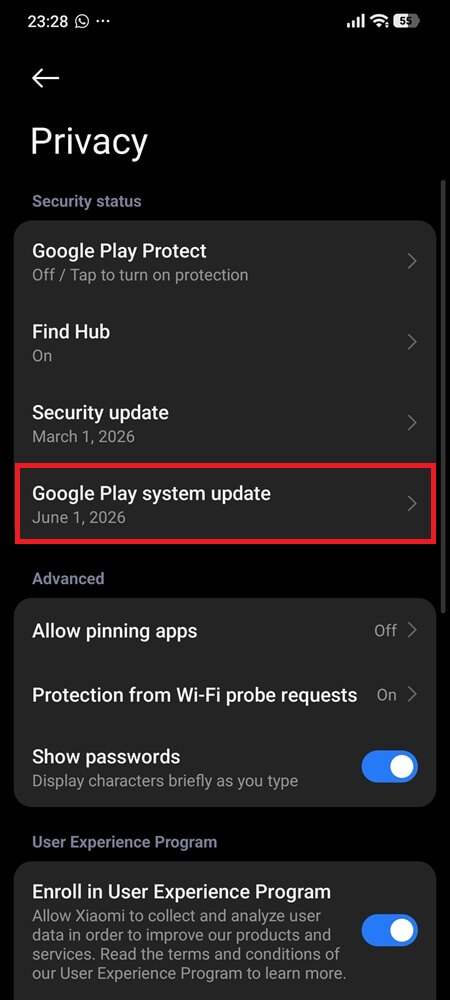
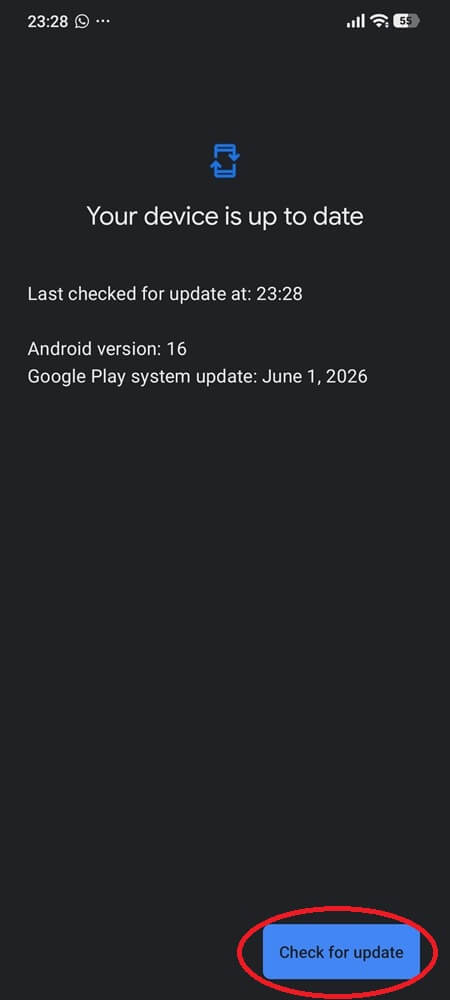
Install Android and Google Play System Updates
- Open Settings.
- Tap Security and privacy.
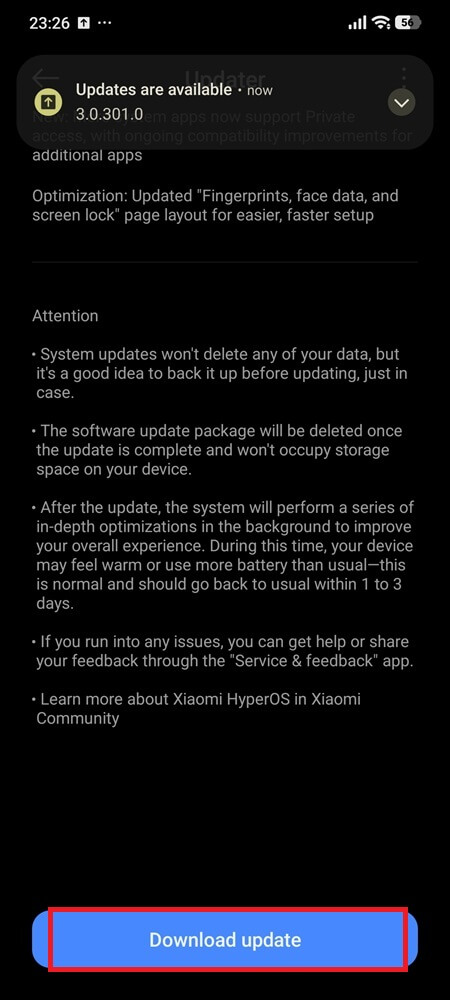
- Check for an Android security update.
- Check for a Google Play system update.
- Install every available update.
- Restart the phone after installation.
Clear the Android System Intelligence Cache
Clearing the cache removes temporary files without resetting the component’s stored data.
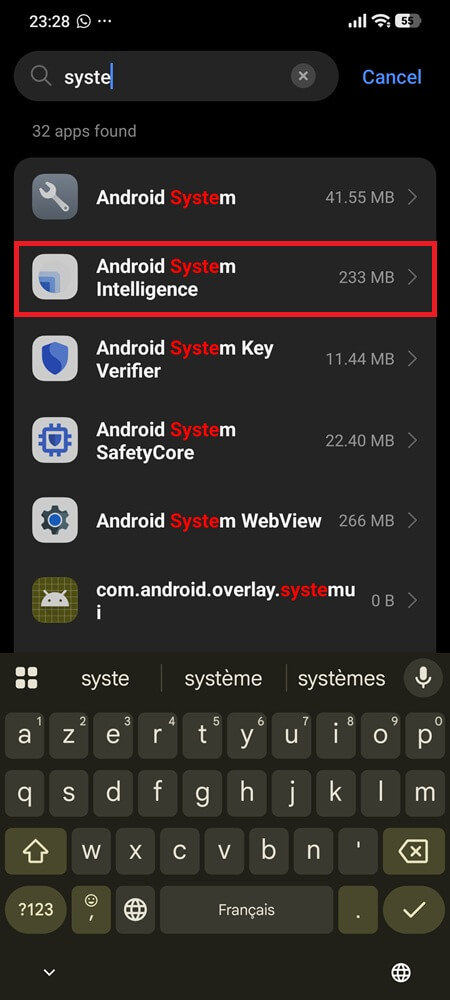
- Open Settings.
- Tap Apps.
- Select See all apps.
- Open the menu and enable Show system when necessary.
- Select Android System Intelligence.
- Tap Storage and cache.
- Tap Clear cache.
- Test the affected feature again.
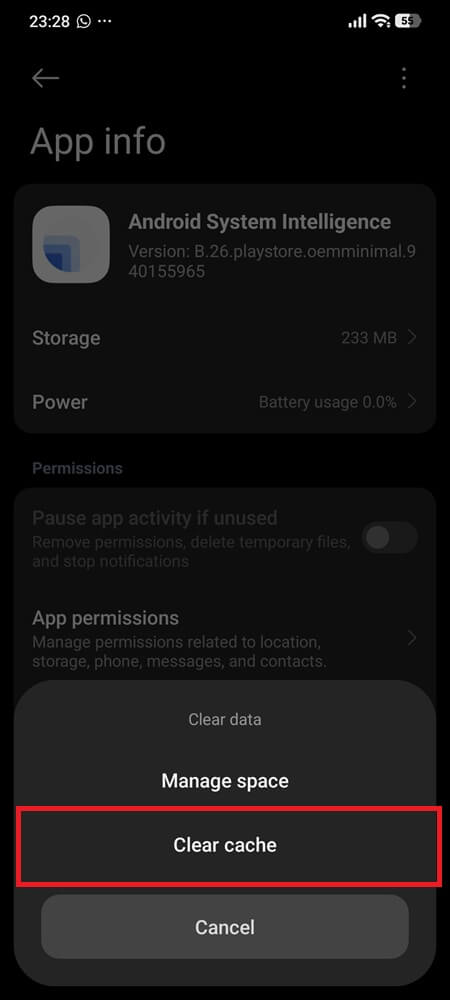
Clear Android System Intelligence Data
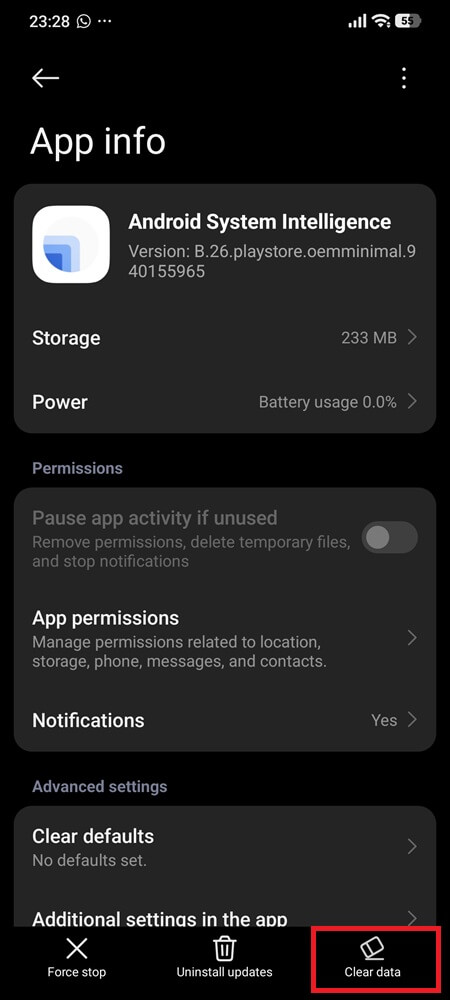
Use this method when crashes continue after updating the component and clearing its cache. Resetting its data can require language resources, feature models, history, or learned suggestions to be downloaded or rebuilt.
- On Pixel phones, open Settings > Security and privacy > More security and privacy > Android System Intelligence.
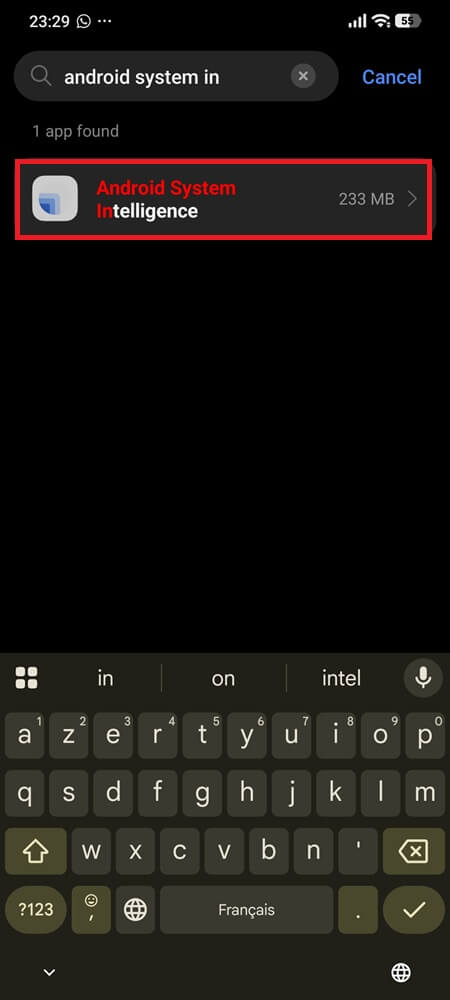
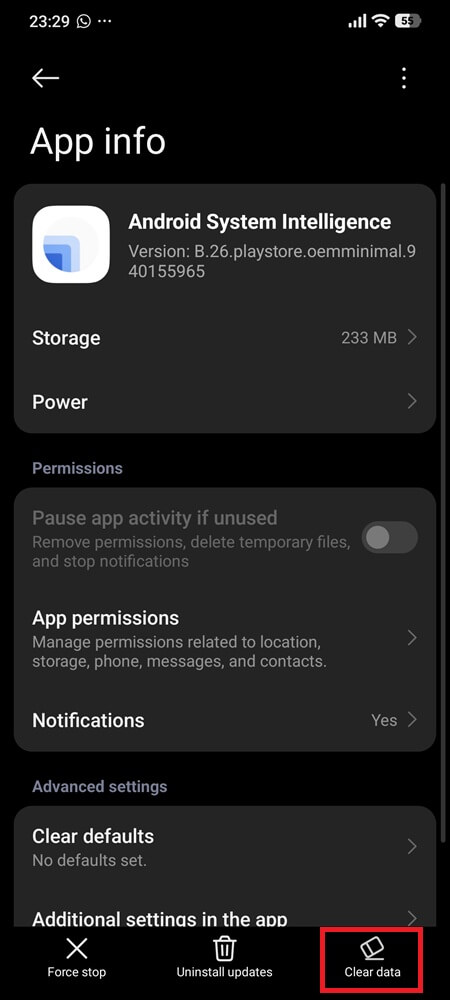
- On other Android devices, open the Android System Intelligence app information page and use its storage or data controls when available.
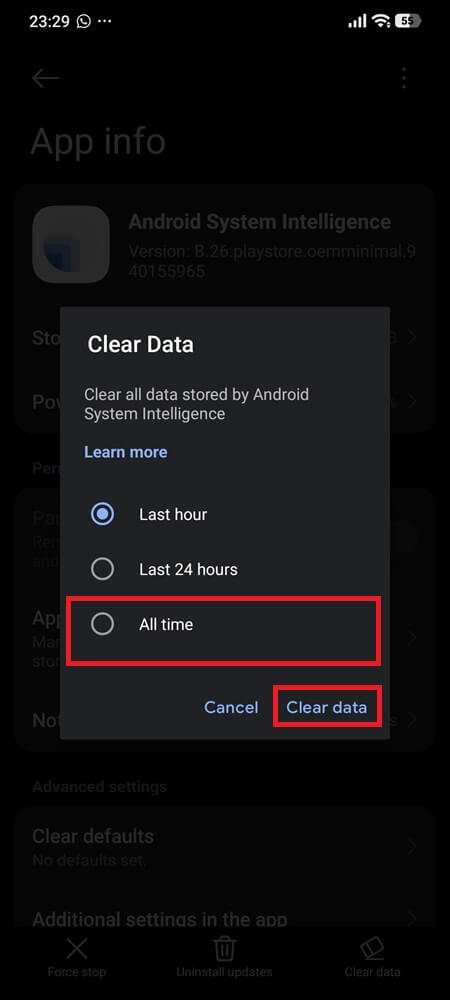
- Tap Clear data, select All time, then tap Clear data again to confirm.
- Restart the phone.
- Leave the device connected to a stable network while required resources rebuild.
- Test the affected feature after the process finishes.
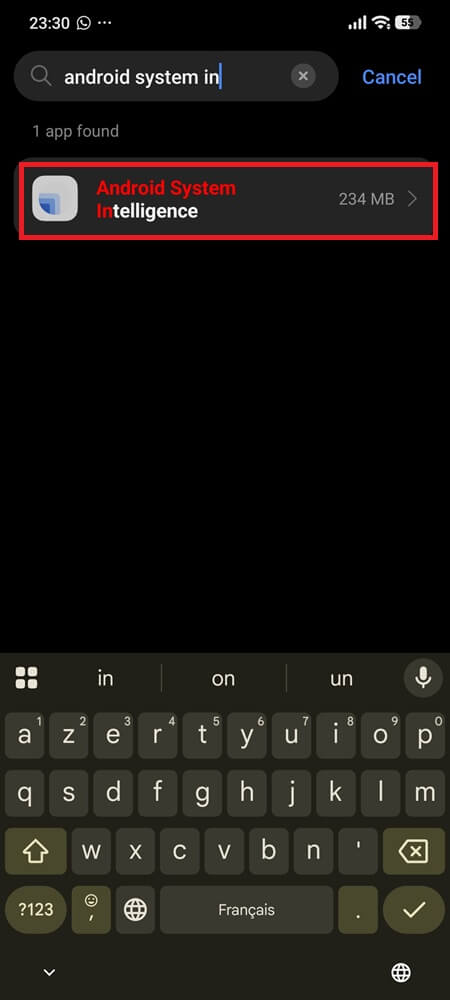
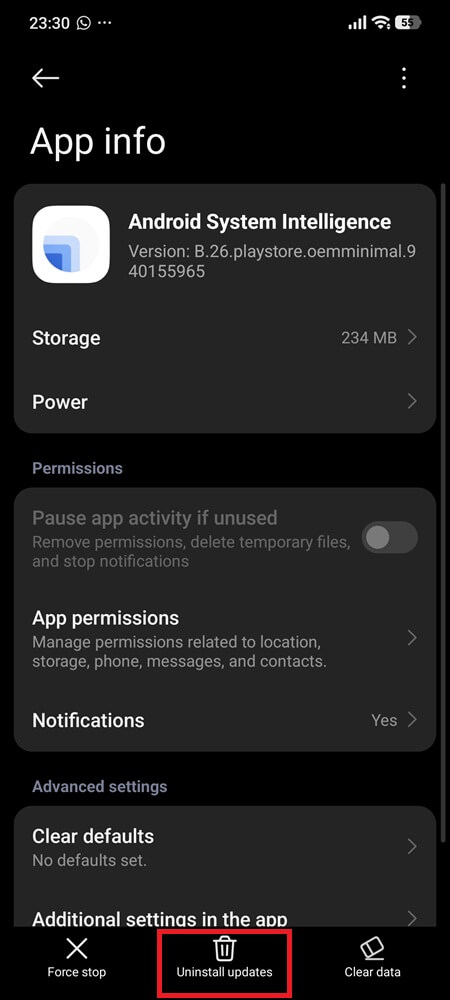
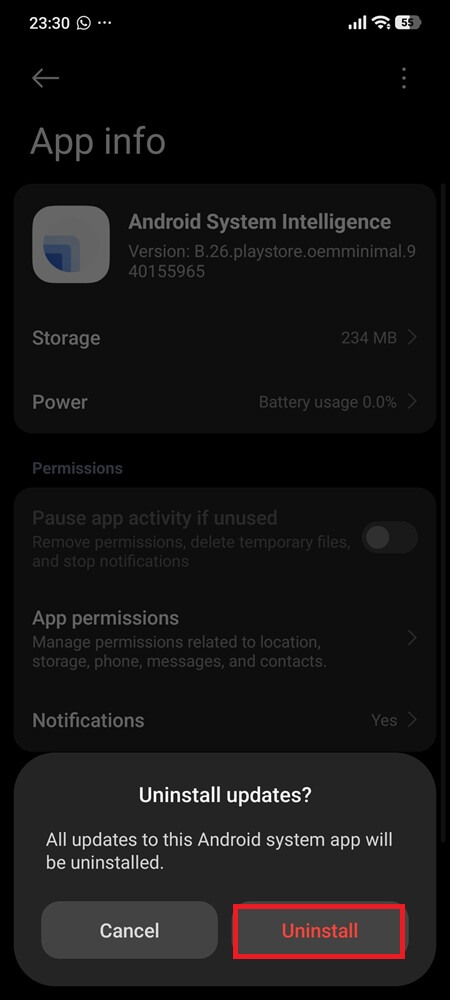
Uninstall Android System Intelligence Updates
This restores the factory version of the component rather than removing the package.
- Open Settings.
- Tap Apps.
- Search for and open Android System Intelligence.
- Tap the top-right menu.
- Select Uninstall updates when the option is available.
- Restart the phone.
- Test the affected feature before installing the newest version again.
Re-enable Android System Intelligence
- Open Settings.
- Tap Apps.
- Select See all apps.
- Open the menu and show system apps.
- Find Android System Intelligence.
- Tap Enable.
- Restart the phone.
- Confirm that the missing features have returned.
Measure Battery Use After the Repair
Battery drain should be checked over a normal period of use rather than immediately after restarting the phone.
- Use the phone normally through a meaningful charge period.
- Open Settings.
- Tap Battery.
- Open Battery usage.
- Check whether Android System Intelligence still shows abnormal sustained activity.
- Confirm that standby drain has returned to its usual level.
When crashes begin immediately after an Android or component update and return after all local data has been rebuilt, the fault can belong to that software release. Sending device feedback with system logs gives Google information about the affected version, while repeating the same reset steps provides no further repair value.
Can You Disable or Remove com.google.android.as?
Some phones expose a Disable button for Android System Intelligence. Disabling it stops the component from running, but it also removes or disrupts the intelligent functions that depend on it.
Uninstalling updates is not the same as removing the package. The original system version stays installed and can be updated through Google Play again later.
A complete removal is not available through normal Android settings because com.google.android.as is installed as a system component. Removing it through package-management commands or modified system access offers little useful storage benefit and leaves integrated features without the service they expect.
For a confirmed crash or battery problem, repairing the package or temporarily returning it to the factory version is more useful than permanent removal. Disabling it only makes sense when the user understands which functions will disappear and has confirmed that the device remains usable without them.
Conclusion
An unfamiliar package identifier often looks more suspicious than the software behind it. com.google.android.as is simply the technical identity Android uses to install, update, authorize, and manage Android System Intelligence.
The package name itself is rarely the actual problem. It’s the layer that shows up in a battery report or crash log, while the real cause usually sits in whatever specific feature or connected component depends on it. Identifying that layer first helps reveal which feature or system component needs attention.
Related Articles