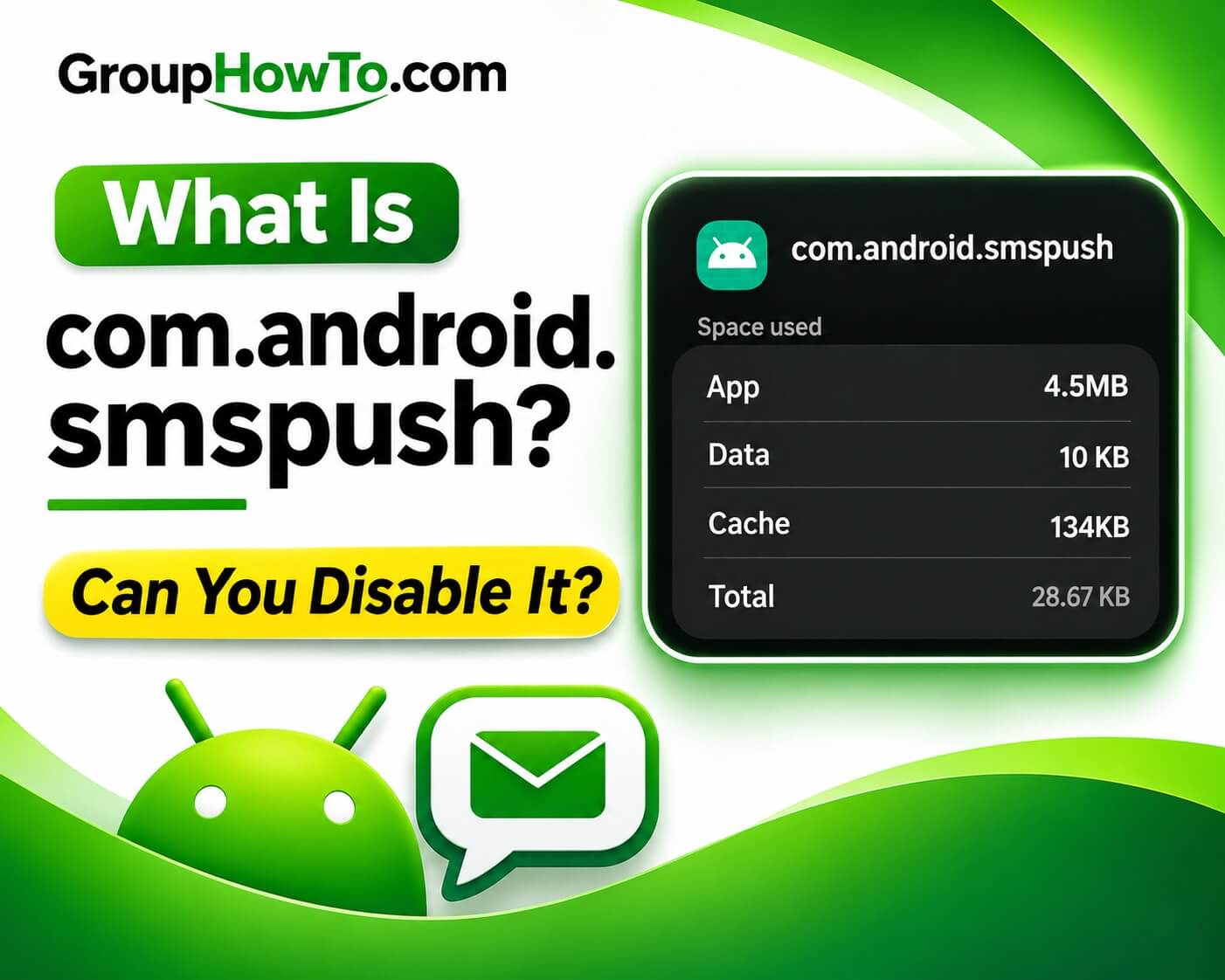
You may encounter com.android.smspush in your phone’s system-app list or through a package viewer without recognizing its name. com.android.smspush is a built-in Android package responsible for WAP Push Manager, a system service that routes certain network-delivered messages to registered applications. It is part of the Android Open Source Project (AOSP), not an ordinary SMS application or a component you need to install.
What Does com.android.smspush Do?
WAP stands for Wireless Application Protocol. Android’s telephony system receives WAP Push messages as Protocol Data Units (PDUs), which contain encoded message information, including a content type and, when present, an application identifier.
WAP Push Manager maintains a database that associates application identifiers and content types with registered receivers. When Android receives a matching message, the manager looks up the appropriate application and directs the message to its registered component rather than sending it through a general broadcast.
If no matching receiver exists, or the registration specifies further processing, the telephony system follows its normal message-handling path. These operations are defined in Android’s WapPushManager source code.
WAP Push Manager does not handle internet push notifications from applications such as WhatsApp or Gmail, which rely on different notification-delivery systems.
Is com.android.smspush Related to SMS or MMS?
WAP Push shares Android’s cellular messaging infrastructure with SMS and MMS, but these message types are processed differently. Ordinary SMS messages are delivered through the standard SMS handling path, without requiring WAP Push Manager’s application-registration database.
MMS has a closer relationship with WAP Push because MMS notifications can arrive in this format. Android’s default SMS application, such as Samsung Messages, receives the WAP_PUSH_DELIVER_ACTION broadcast for incoming MMS messages with the MIME type application/vnd.wap.mms-message, then handles the message through its MMS implementation, as documented in the Android Telephony API reference.
Is com.android.smspush Safe?
Yes. com.android.smspush is an official AOSP package, and its presence among preinstalled system applications does not indicate malware, spyware, or unauthorized message monitoring.
The Android package manifest declares the com.android.smspush.WAPPUSH_MANAGER_BIND permission to restrict which applications can bind to the service. Its implementation also checks application signatures when a registered receiver requires signature verification, preventing delivery through that registration when the signatures do not match.
These protections describe the official system implementation. An APK obtained from an unknown source should not be considered legitimate solely because it declares the same package name. You can check an APK’s safety before installing it by examining its source, permissions, and digital signature.
What Problems Have Been Reported With com.android.smspush?
Finding WAP Push Manager in a system-app list does not demonstrate excessive battery consumption or CPU activity. User reports involving the package describe different symptoms on older Android software, without establishing a common cause.
A user reported freezing and unusually high processor usage after updating to Android 4.1.2. SystemPanel identified com.android.smspush and com.motorola.devicemanagement among the processes associated with high CPU usage, but the discussion did not establish which component caused the slowdown.
A separate LineageOS issue #3184 described SMS notifications appearing only after unlocking the screen. On LineageOS 17.1, the user reported success with three settings together: disabling battery optimization for com.android.smspush, displaying all lock-screen notification content, and turning off silent mode. The workaround stopped working after upgrading to LineageOS 18.1, and the cause of the notification delay was not identified.
How to Fix Freezing or Delayed SMS Notifications
Freezing and delayed SMS notifications require different checks. The reported cases do not establish a common WAP Push Manager defect, so troubleshooting should distinguish downloaded-app interference from notification settings and background battery restrictions.
1. Check for App Interference Using Safe Mode
Safe Mode temporarily disables downloaded applications, helping identify whether an installed app contributes to freezing or slow performance. It allows you to test the phone without disabling WAP Push Manager.
- Open the phone’s Power menu. On Pixel 6 and later, press Power + Volume Up together; other devices have their own shortcuts.
- Touch and hold Power off or Restart, then confirm Safe mode when prompted. If this option is unavailable, follow your manufacturer’s Safe Mode instructions.
- Use the phone in Safe Mode and check whether freezing or slowdowns return.
- If the problem disappears, restart normally and investigate recently installed or updated applications. Remove suspected apps individually and test after each removal.
- If freezing continues in Safe Mode, check for available Android system updates through your phone’s software update settings.
2. Restore SMS Notifications on the Lock Screen
When an SMS arrives but its alert does not appear until the phone is unlocked, check the messaging application’s notification permissions and Android’s interruption controls, including Do Not Disturb. These settings determine how notifications are displayed or silenced, independently of the SMS delivery process.
- Open Settings > Notifications > App notifications and select your default messaging application.
- Enable notifications and select Alerting rather than Silent for incoming messages, where available.
- Return to Settings > Notifications > Notifications on lock screen and allow notifications to appear.
- Open Quick Settings and turn off Do Not Disturb or another active mode that suppresses message alerts.
- Lock the phone and send a test SMS from another device. Check whether its notification appears when the message arrives.
3. Review Background Battery Restrictions
Android’s battery management can restrict background app activity and delay some notifications. If SMS alerts remain delayed after checking their notification settings, review the messaging application’s battery restrictions before changing system services.
- Open Settings > Apps and select your default messaging application.
- Open App battery usage or Battery, depending on the device.
- Check whether background activity is restricted. On supported devices, enable Allow background usage and use the normal Optimized setting.
- Lock the phone and send another test SMS to check whether the alert arrives without unlocking.
Can You Disable or Uninstall com.android.smspush?
You should generally keep com.android.smspush enabled. The AOSP WapPushOverSms implementation continues with legacy message processing when WAP Push Manager is unavailable, so disabling it does not automatically stop ordinary SMS or MMS delivery. However, this fallback does not perform the manager’s registered-application lookup.
On phones where the package is part of the system image, ordinary uninstallation is generally unavailable. Whether Android exposes a Disable option depends on the manufacturer’s firmware and its restrictions on system applications.